Getting started
The Dashboard and navigation
The Dashboard, the Company Portal sidebar groups, and the language switch.
The Dashboard
After signing in you land on the Dashboard, the Company Portal's main screen. The left sidebar is your main navigation: every screen is reached from there, grouped into sections.
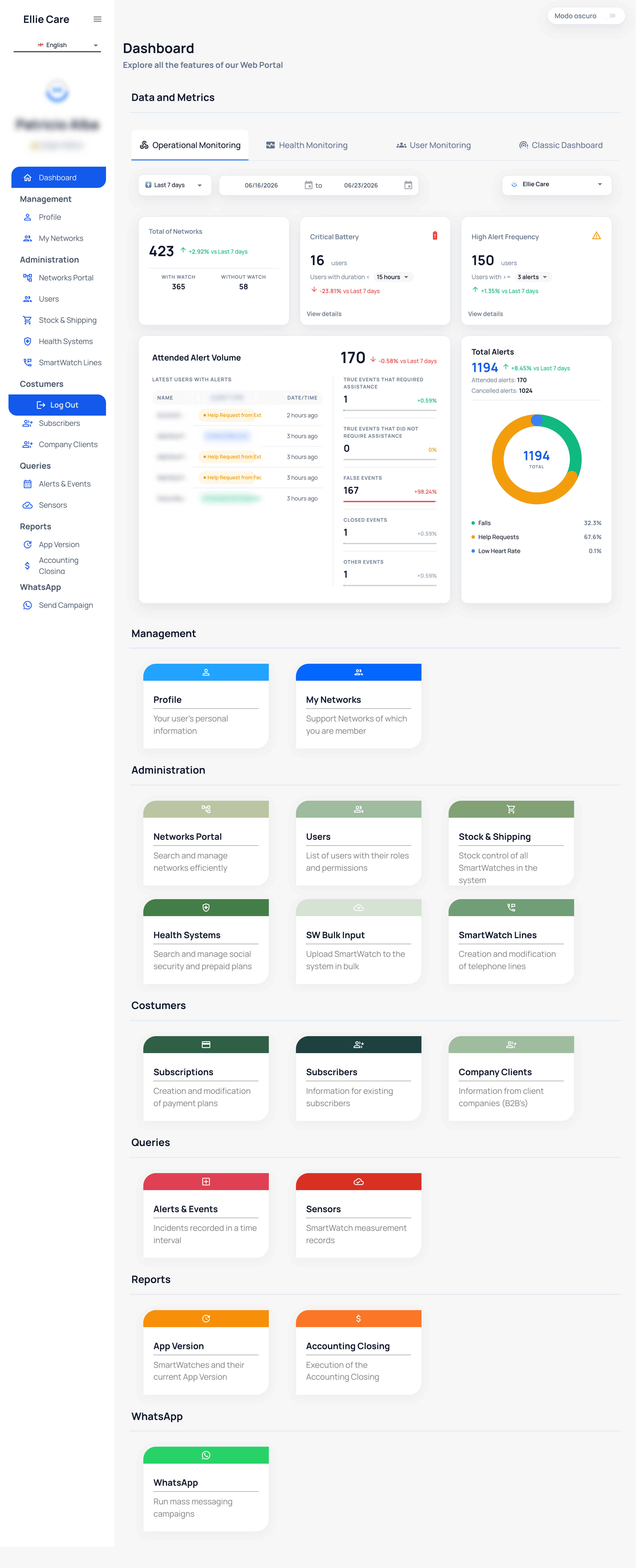
The sidebar screens
These are the screens an operator uses most, organized by the section where they appear:
| Section | Screen | What it's for |
|---|---|---|
| Management | Profile | Your account details. |
| Management | My Networks | The networks you belong to. |
| Administration | Networks Portal | Network administration. |
| Administration | Users | The people who wear the watch. |
| Administration | Stock & Shipping | The core screen: watch intake, preparation and linking. |
| Administration | Health Systems | Associated health systems. |
| Administration | SmartWatch Lines | Manage the watches' SIM lines. |
| Costumers | Subscribers | Your company's subscriptions. |
| Costumers | Log Out | Leave the Portal. |
| Queries | Alerts & Events | Recorded alerts and events. |
| Queries | Sensors | Sensor readings. |
| Reports | App Version | The installed app version. |
| Reports | Accounting Closing | Accounting closing report. |
Switching language
In the top-left there is a selector showing the current language (for example 🇪🇸 Castellano). Opening it lists Castellano / English / Português. Navigation, watch states and most controls switch instantly.
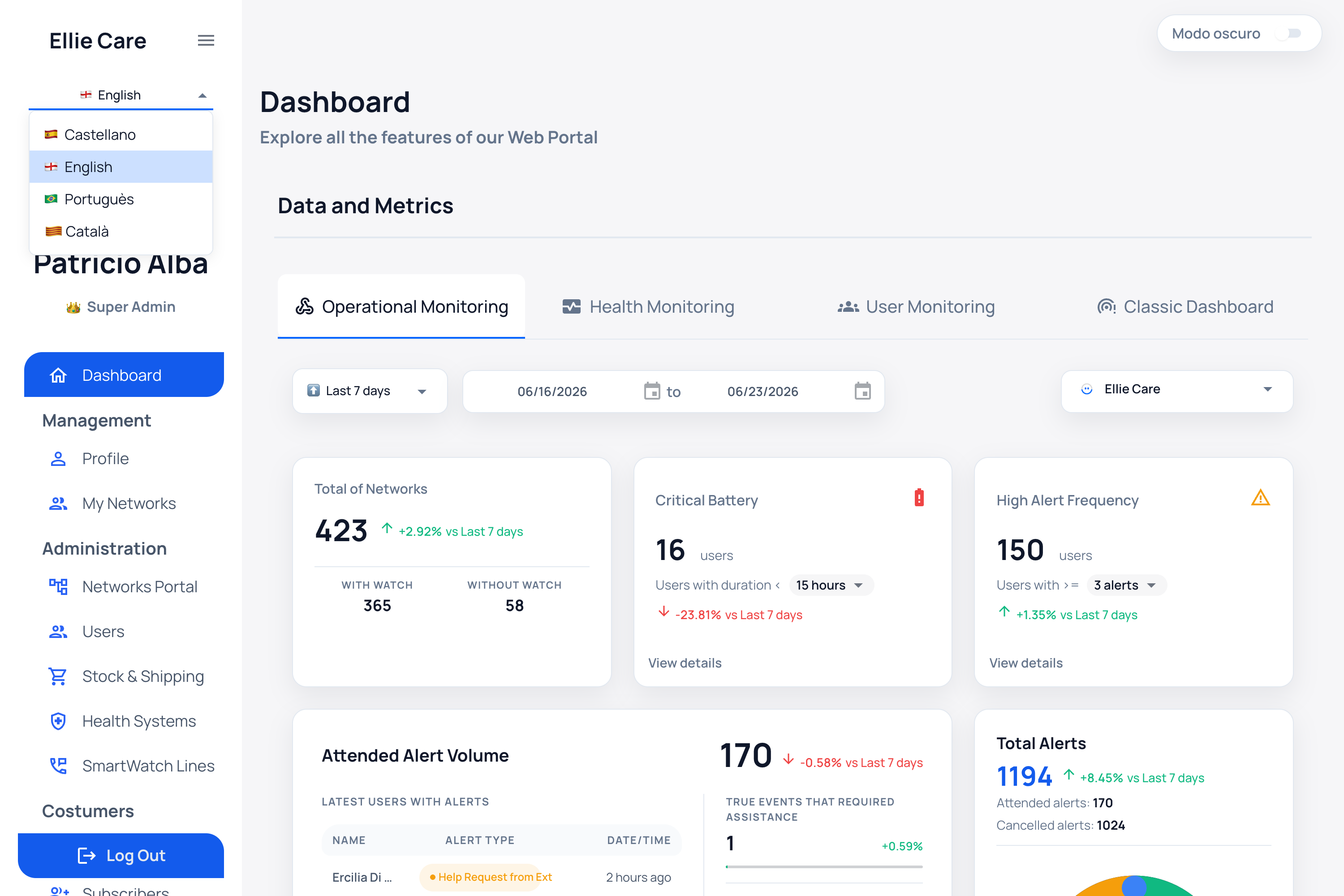
A few page headers and the green buttons that register devices stay in Spanish even when you pick another language: Ingresar un Nuevo Dispositivo (register a new device), Ingresar Dispositivos en Lote (register devices in a batch) and Ingresar Dispositivos por CSV (register devices from a CSV file). For those, this guide gives you the Spanish label together with its meaning.
➡️ Ready to start operating: see the enrollment overview.