Getting started
Signing in to the Company Portal
How to sign in to the Company Portal with your email and password, or with your Google or Apple account.
Accessing the Company Portal
The Company Portal is where your company manages its watches and users on its own. To get in, open your browser and go to:
https://backoffice.elliecenter.com/login
You will see the Bienvenido (Welcome) screen with the sign-in form.
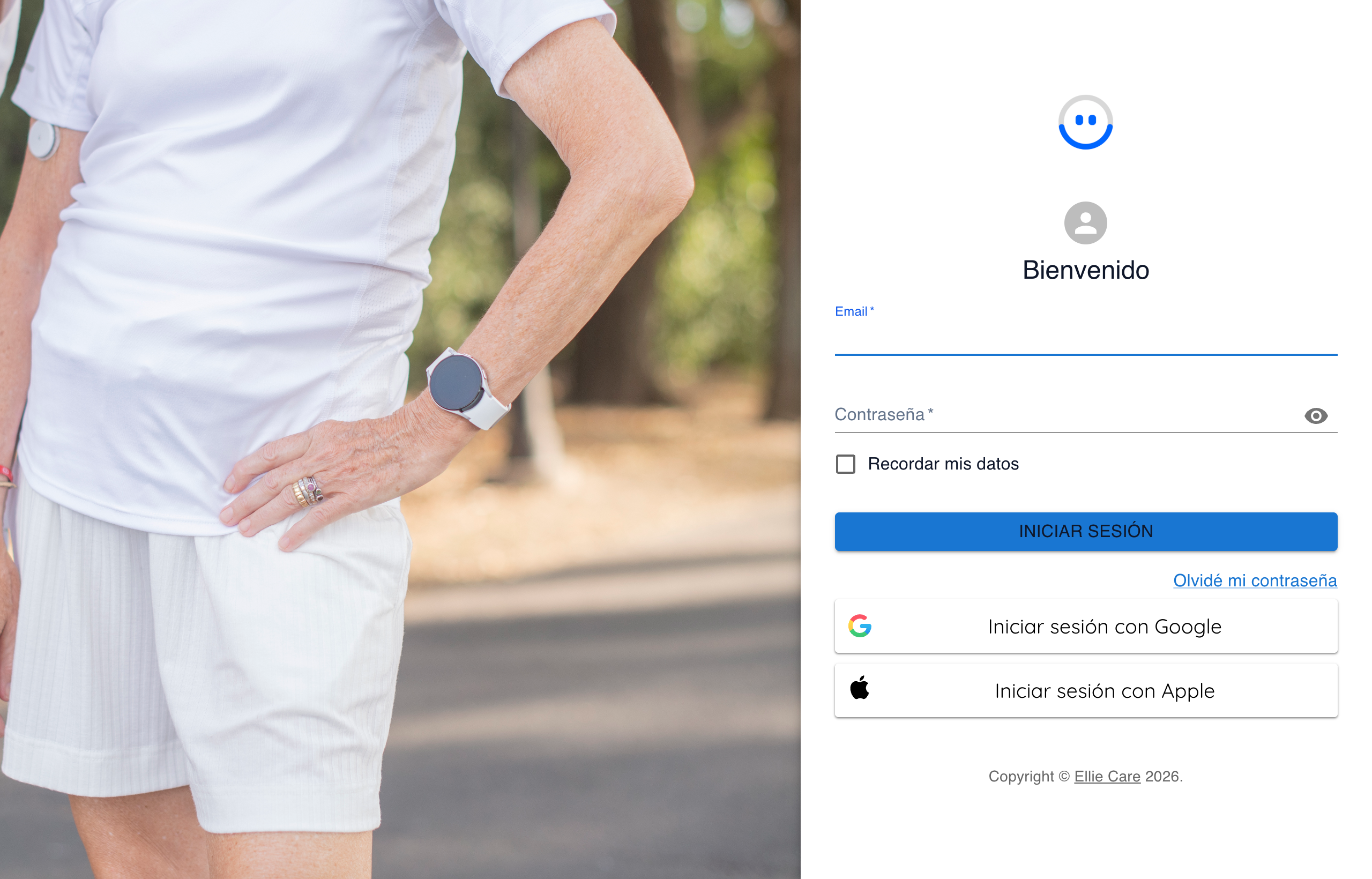
Signing in with email and password
- Type your account into the Email field.
- Type your password into the Contraseña (Password) field.
- Click INICIAR SESIÓN (Sign in).
Tick the Recordar mis datos (Remember me) checkbox if you always use the same device, so you don't have to retype your email next time.
If the email and password don't match, the Portal won't let you in. Check for stray spaces and make sure Caps Lock is off.
Forgot your password?
Click the Olvidé mi contraseña (Forgot my password) link below the sign-in button and follow the steps to reset it. You'll receive the instructions by email.
Signing in with Google or Apple
If your account is linked to an external provider, you can use the Iniciar sesión con Google (Sign in with Google) or Iniciar sesión con Apple (Sign in with Apple) buttons. Your browser asks you to confirm the account and you return straight to the Portal.
After signing in, you land on the Dashboard, the Company Portal's main screen.
To learn your way around the Portal, continue with the navigation guide.