Watch enrollment & dispatch
Register watches
How to add watches to the Company Portal one at a time, in batch, or by CSV, leaving them in Sin Asignar.
Where to do it
Watches are registered on the Stock & Shipping screen, inside the Company Portal. The header and subtitle ("Control de Stock y Envíos de productos Ellie Care") stay in Spanish in every language.
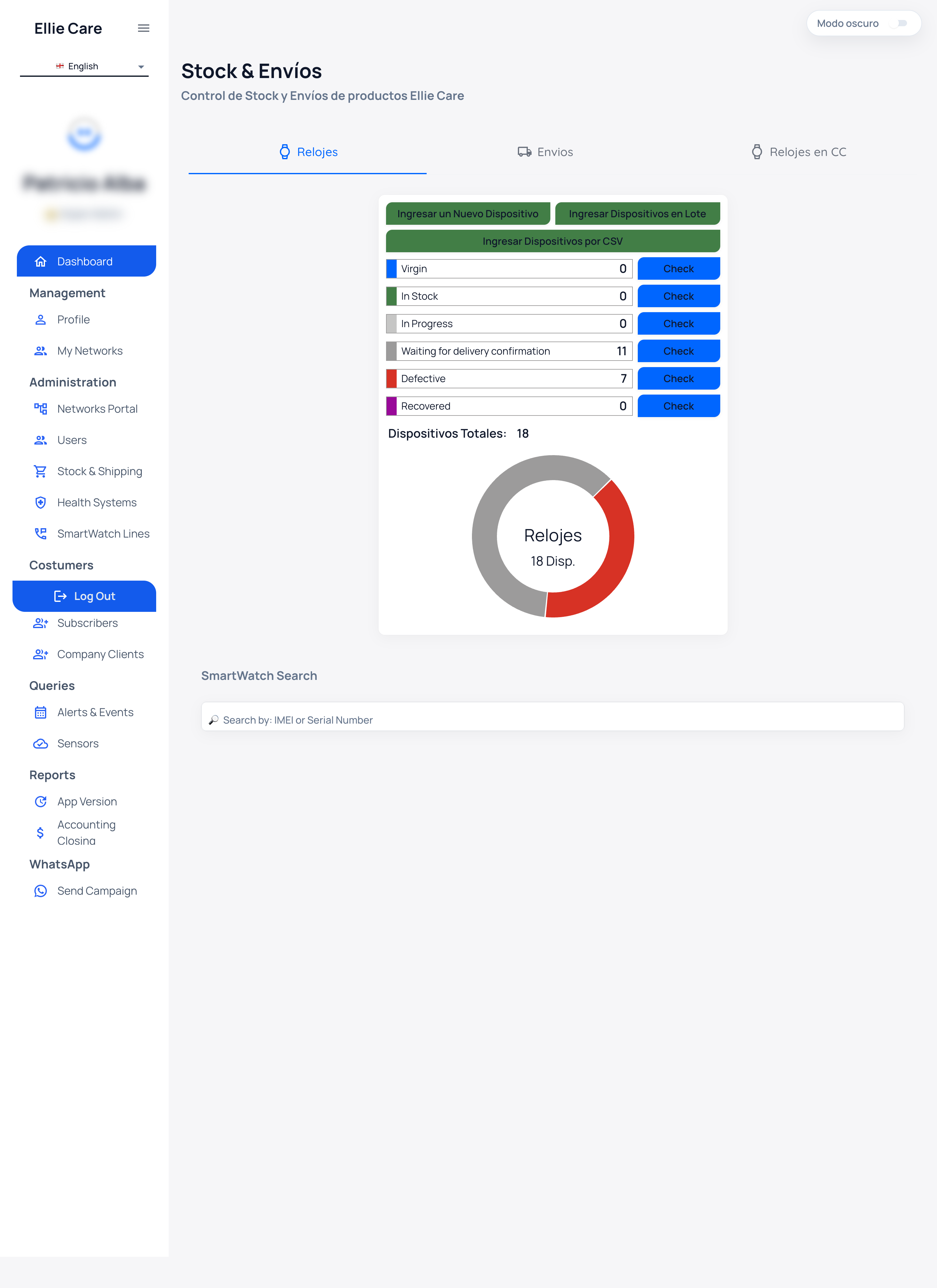
The Watches tab shows counts per state, each with a Check button to view the detail, plus a "Dispositivos Totales" (total devices) counter and a donut chart. To find a specific device use Buscar por: IMEI o Número de Serie (search by IMEI or serial number).
| State | Meaning |
|---|---|
| Virgin | Not yet configured. |
| In Stock | Registered and available. |
| In Progress | Being prepared. |
| Waiting for delivery confirmation | Awaiting receipt confirmation. |
| Defective | Marked as defective. |
| Recovered | Recovered for reuse. |
Intake options
Three intake buttons (their names stay in Spanish in every language):
- Ingresar un Nuevo Dispositivo — add a single device.
- Ingresar Dispositivos en Lote — add a batch of devices.
- Ingresar Dispositivos por CSV — import from a CSV file.
Add-device form fields
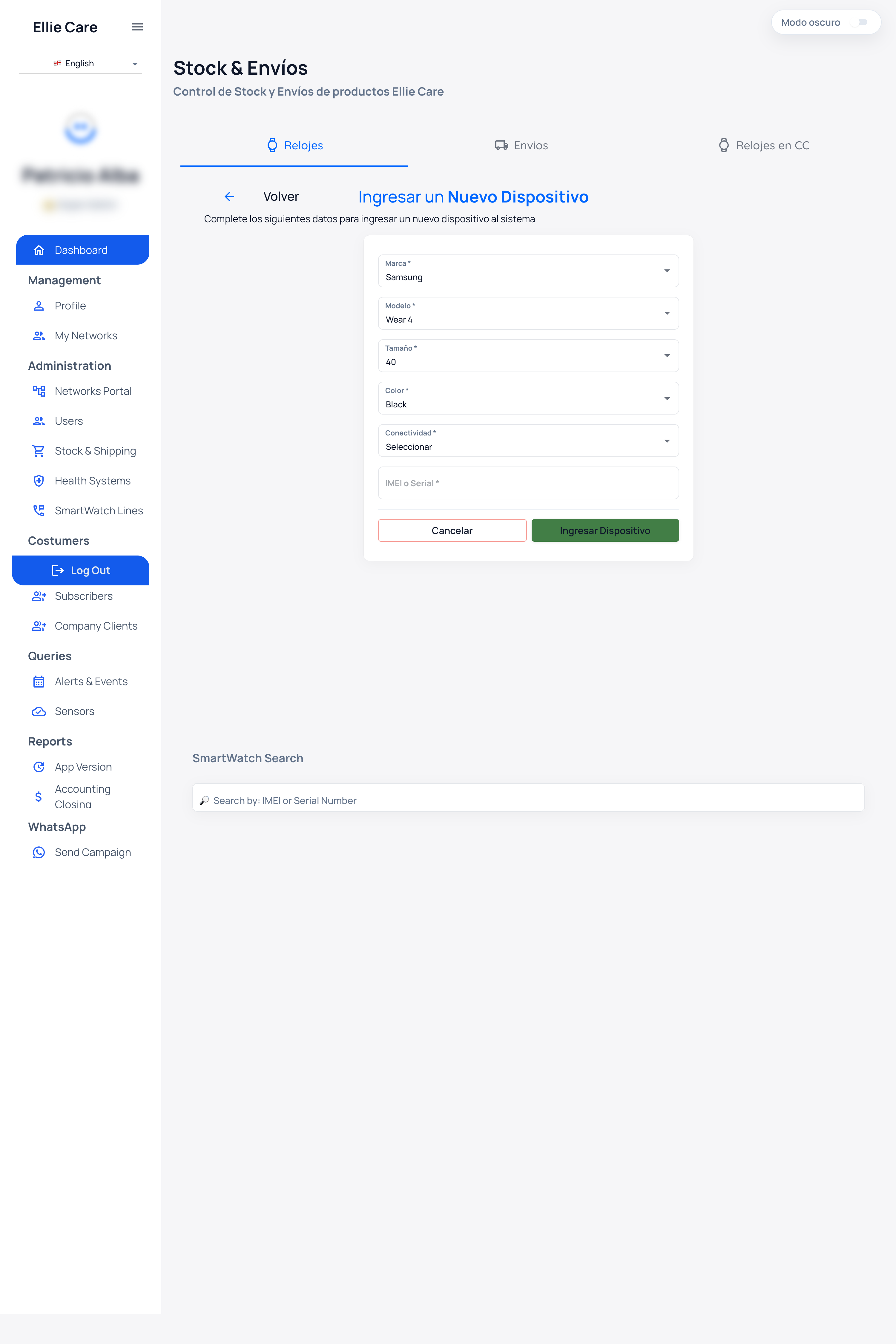
The form opens from Ingresar un Nuevo Dispositivo (header "Ingresar un Nuevo Dispositivo", helper "Complete los siguientes datos…").
| Field | Example |
|---|---|
| Marca (Brand) | Samsung |
| Modelo (Model) | Wear 4 |
| Tamaño (Size) | 40 mm |
| Color | Black |
| Conectividad (Connectivity) | LTE / WiFi |
| IMEI o Serial (device ID) | the device identifier |
Fill in the details and click Ingresar Dispositivo (Add device), or Cancelar (Cancel) to discard.
Result: the watch appears under Sin Asignar (Unassigned), ready for the next step.